01
The loop in one look
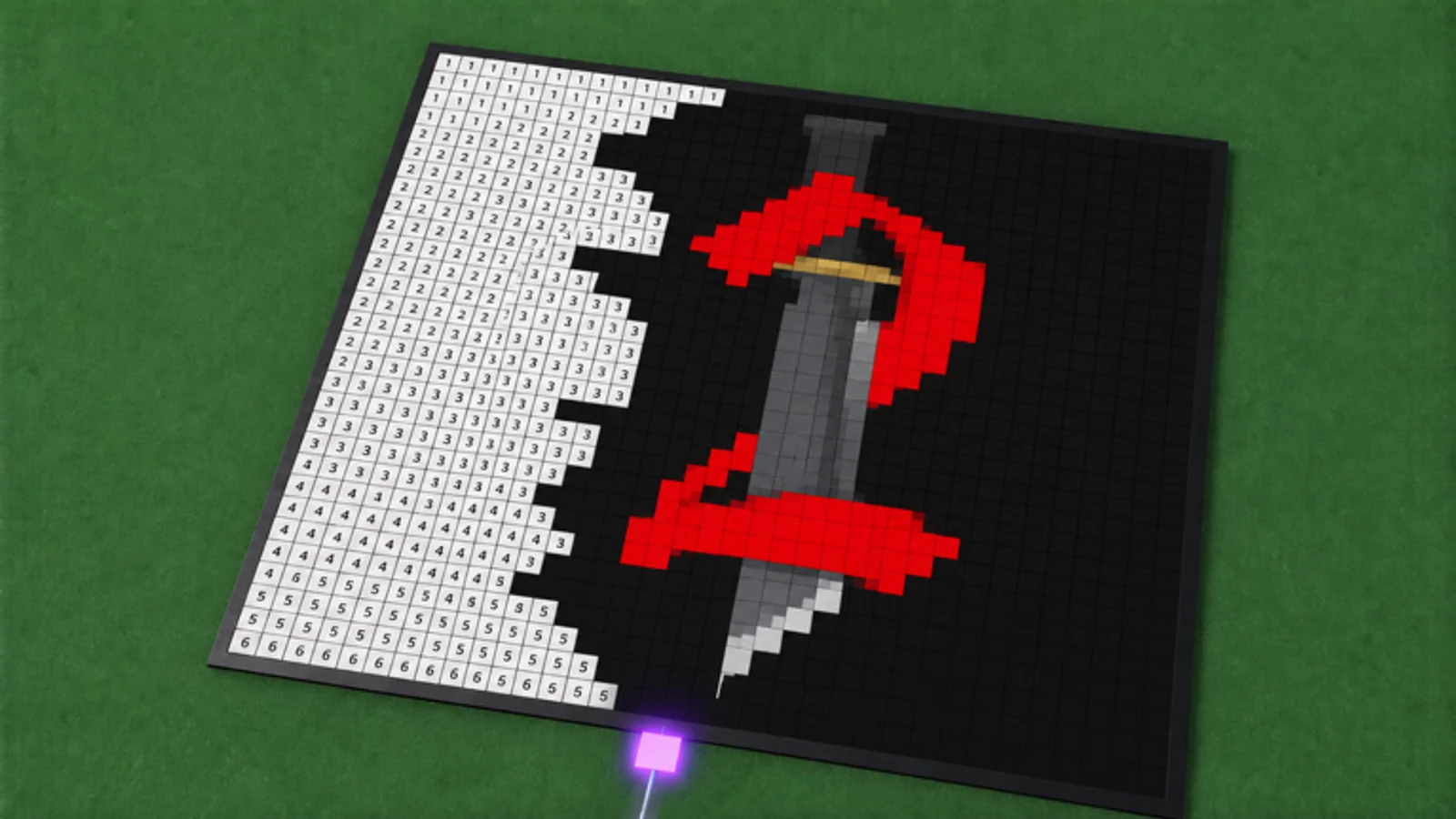
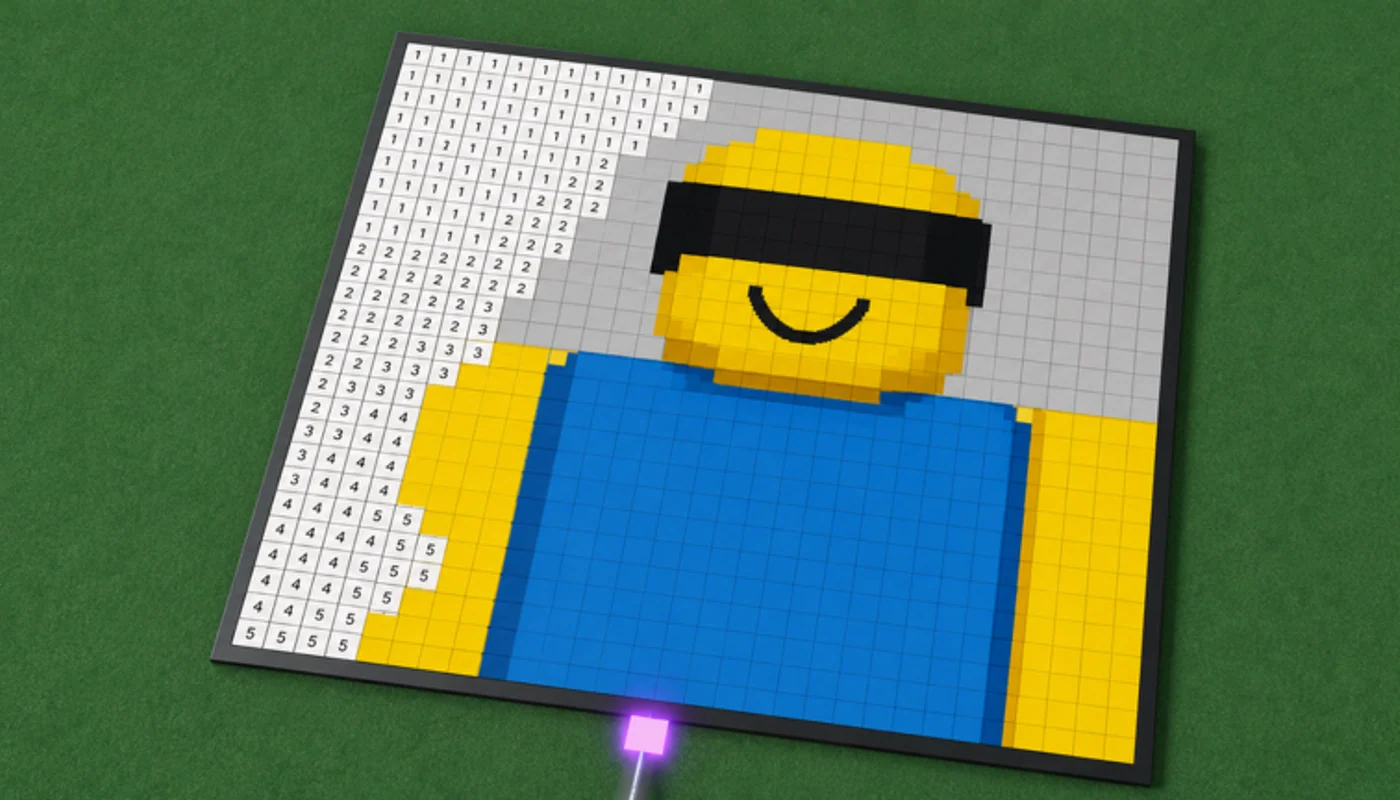
The official game description defines a focused creative loop. You start by claiming a plot, then search for a Roblox game whose icon you want to work on. Loading that icon gives the canvas its subject. The picture is recreated block by block, so the visible grid is not decorative: it is the work itself.
The best first goal is a recognizable icon rather than a perfect gallery. A finished section immediately makes the canvas easier to read, especially when its color fields are distinct. The game is built around returning to the same image and making steady visible progress instead of racing through a scripted level.
02
A social canvas, not a solo checklist
Paint a Game! describes its coloring as real-time play alongside other players. That changes the useful question from “what should I unlock first?” to “what part of the image can I make clear right now?” A strong starting area is a large, high-contrast shape that lets other players recognize the target while they work on nearby blocks.
The shared setting is also why a simple plan helps. Pick a part of the image, keep its edge readable, and leave room for the next section. This wiki keeps the guidance at that level because the official page confirms the cooperative painting loop but does not publish a formal role system, color economy, or score table.
03
Leave without losing the canvas
The official description says progress saves automatically. That makes an unfinished canvas a valid stopping point: you can make progress during one session, leave when you need to, and return later. A saved project is most useful when its next unfinished section is obvious, so finishing clear edges and large color areas can make a later return easier to read.
Use the guide when you want the complete first-session sequence, or open the official-game page when you need to confirm that you are joining the right Roblox experience.